How to Find Hostname, Physical or IP Address of Your Device?
Hostname is your device name on a network. For example, ABC-PC. An IP address is the unique number your devices use for communication on a network. For example, 192.xxx.x.x. The MAC Address, also called the physical address of your device, is a fixed hardware ID given to the network interface card (NIC) attached to your device.
Each device connected to a network has all three. Many times, we need to find them for troubleshooting or network security purposes.
Without any fluff, let us get straight to easy methods for finding IP addresses, hostnames, and MAC Addresses of websites.
Finding the Hostname, IP Address, and Physical Address on Windows
For computer devices, Windows is the most dominant operating system. According to a market study, Windows accounts for 60.8% of the OS used on computers. The reason behind the dominance of Windows is quite simple:
- Extensive software/hardware compatibility
- Pre-installed ubiquity
- Familiar user interface
To find IP address and hostname on Windows, several methods are available.
Method 1: Using Command Prompt
This is the quickest and easiest way to find the hostname, MAC Address, and IP address on Windows.
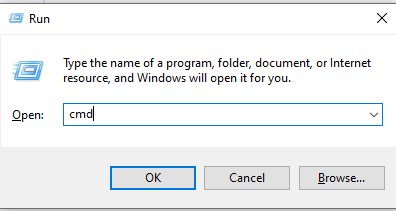
- Open the Windows command prompt by run dialog box (Short key: Windows + R), then type cmd, and then press Enter.
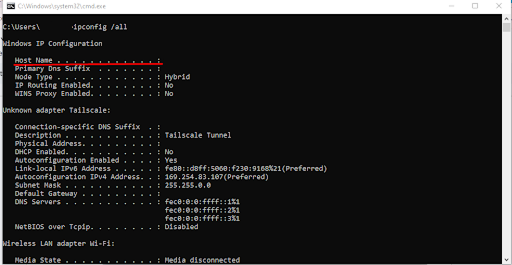
- Type ipconfig /all.
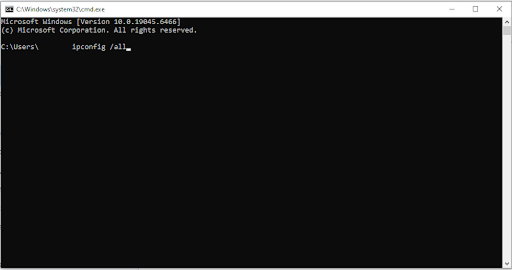
- Press Enter.
Now, you will see:
- Hostname → shown as Host Name
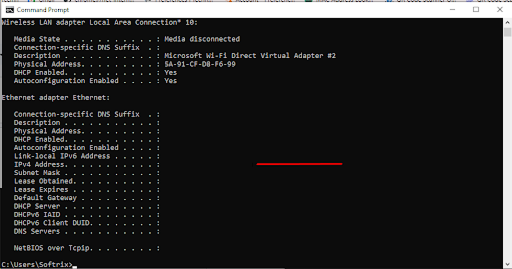
- IP Address → shown as IPv4 or IPv6 Address
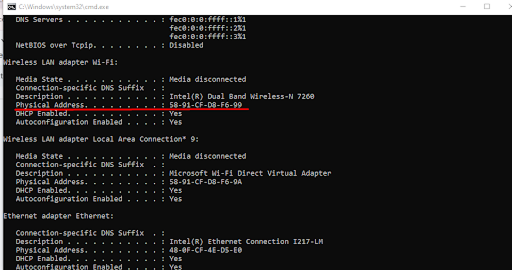
- MAC Address → shown as Physical Address
Method 2: Using Windows Settings
You can also find the Hostname, MAC and IP Address of your device by visiting the settings on Windows.
- Open Settings.
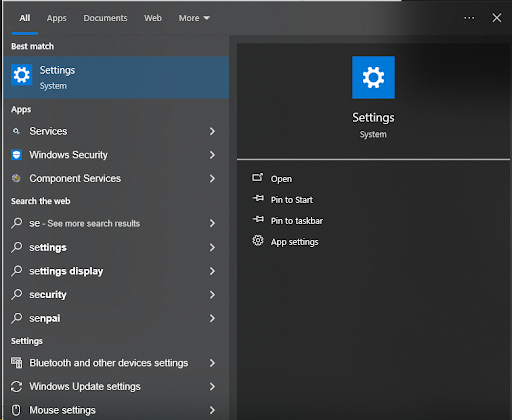
- Go to System.
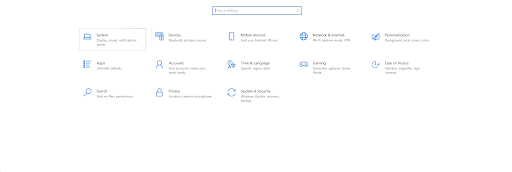
- Click About (will be at the very top).
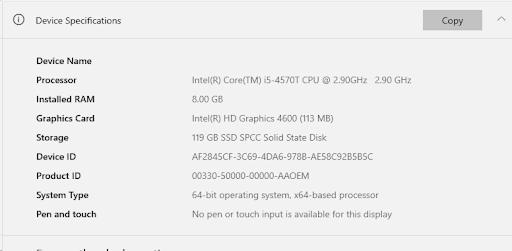
The entry next to Device Name is your hostname.
To find the MAC Address and IP Address on Windows without the command prompt, follow these steps.
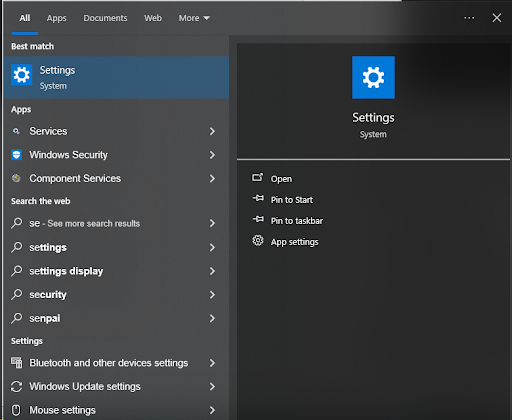
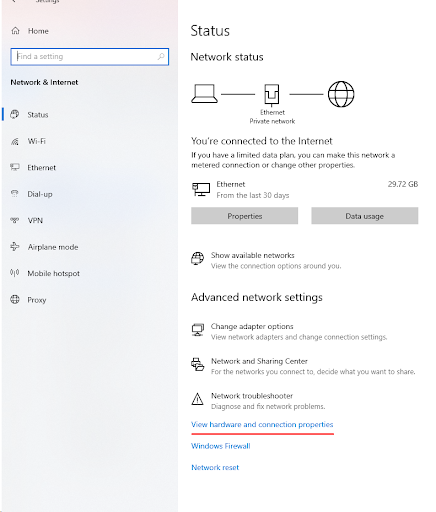
- Go to Settings.
- Open Network & Internet.
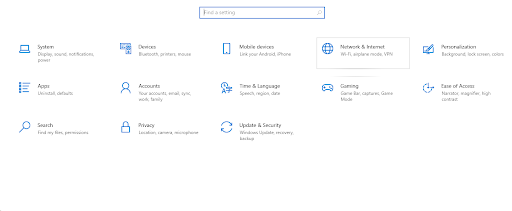
- Click ‘View hardware and connection properties.’
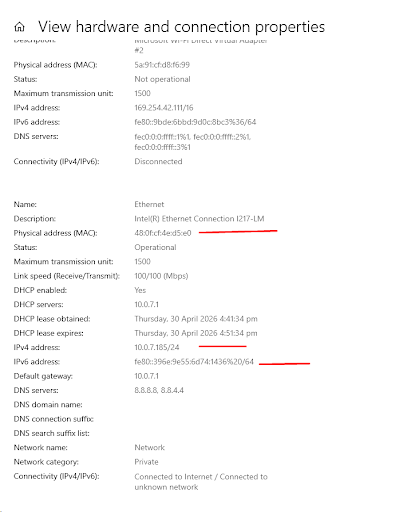
You will see the Physical Address (MAC) and the IP address (IPv4 or IPv6) your device is using.
How to Find Hostname, IP, and MAC Address on macOS?
macOS is another popular operating system after Windows and is being used by millions around the world. If you also use a Mac and want to find the IP and MAC address, follow these steps.
Method 1: Using Terminal
- Open Terminal.

- Type hostname.
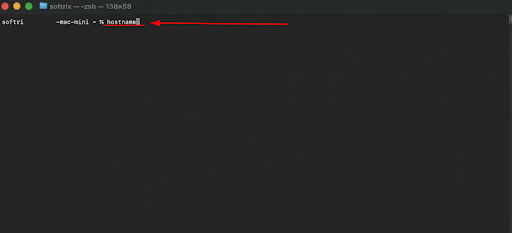
- Press Enter.

You will see your device name (hostname).
To find IP and MAC address:
- Open Terminal again.

- Type ifconfig.

- Press Enter.

Method 2: Using System Settings
- Open System Settings.
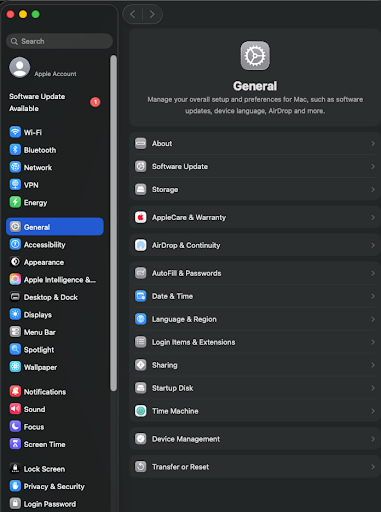
- Go to Network.
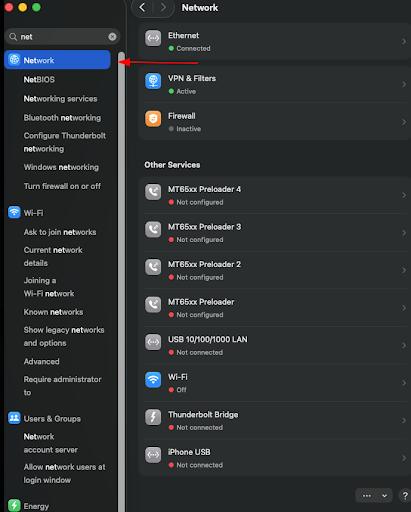
- Click your active connection
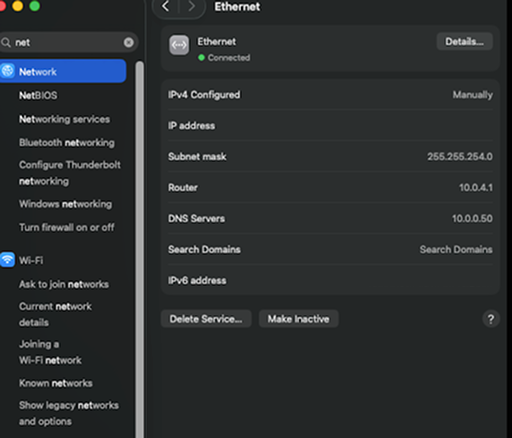
Here, you can find your IP and MAC address easily.
When Do You Need These Network Details?
You may need this information in many situations. For example:
- When your internet is not working.
- You want to set up a router or WiFi.
- Need to perform a MAC address lookup.
- While troubleshooting network errors.
- Finding IP geolocation, etc.
Conclusion
By following the steps outlined in this blog post, you can easily find your device’s hostname, physical address, and IP address. On Windows, the Command Prompt and on macOS, the Terminal are the most reliable and quickest methods.
Frequently Asked Questions
Are MAC addresses and IP addresses the same?
No, MAC address and IP address of a device are two different things. IP address shows your device on a network, while a MAC address is tied to your hardware.
What is the physical address of a device?
The physical address of a device is also called the MAC address (Media Access Control address). It is a unique ID that the manufacturer assigns to your device’s network card.
Can I change MAC address of my device?
No, you cannot permanently change the MAC address of your device. It works like a permanent identity of your device on a network. But you can temporarily spoof the MAC address for network testing purposes.